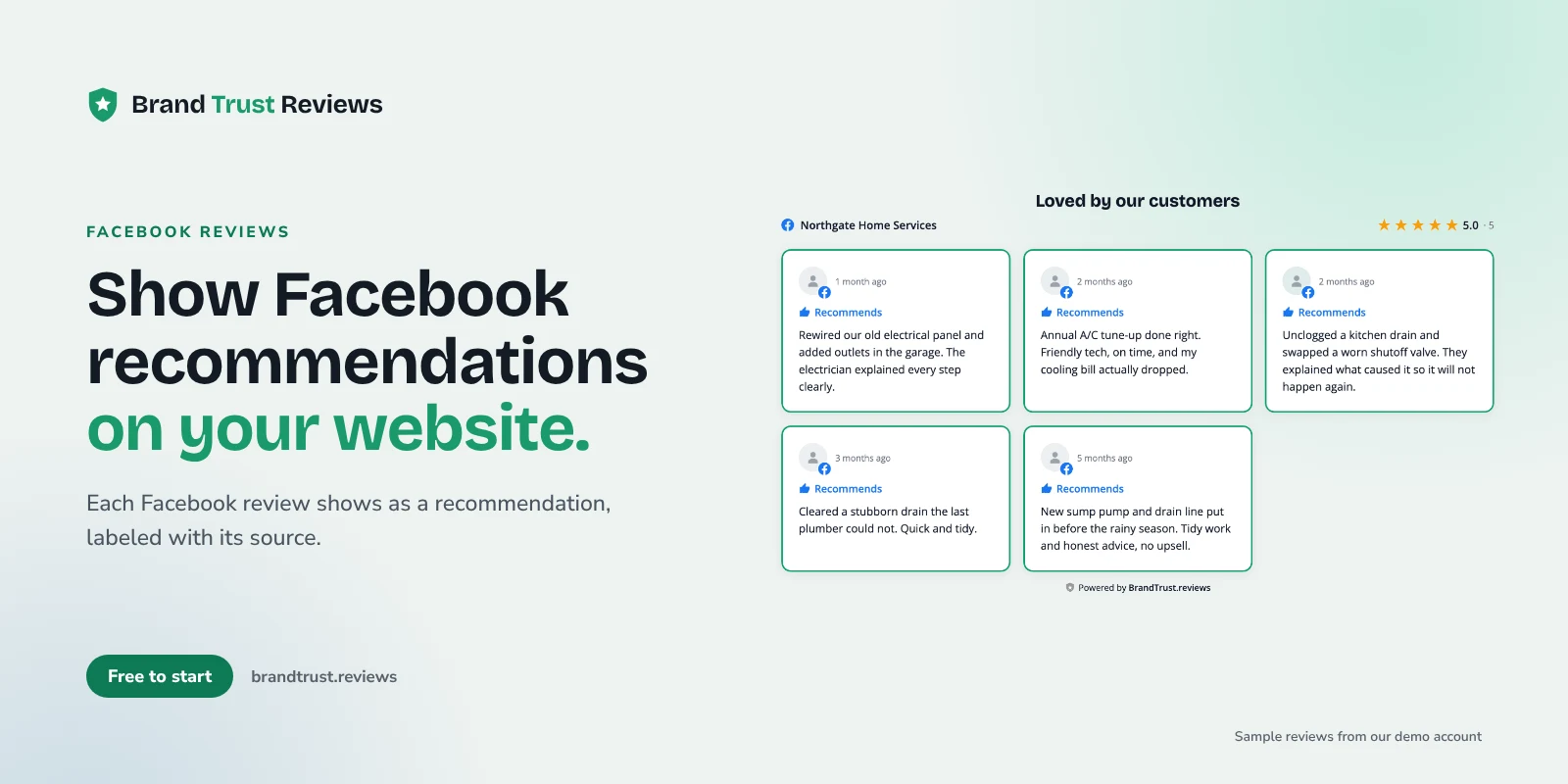
If you want to show Facebook reviews on your website (Facebook now calls them recommendations), it helps to know what Facebook actually collects today before you pick a widget or a layout. Facebook Pages no longer work like a five-star review site. Customers recommend your business (or don't), and that changes how you should present those reviews to visitors.
How Facebook recommendations work today
On a Facebook business Page, reviews are called Recommendations. According to Facebook's help article on how to recommend a business on Facebook, a customer goes to your Page, clicks Reviews, then clicks Yes to recommend the Page or No to not recommend it. They choose an audience, write their recommendation and post it.
So the core signal is a yes or no, plus written text. There is no 1 to 5 star picker in that flow.
A few other details from Facebook's own help pages matter for anyone displaying these reviews:
- Recommendations have to be turned on. Facebook's page on how to turn Recommendations on or off explains that turning them off removes the rating and reviews from your Page. If your Page has no Reviews tab, check that setting first.
- Audience affects what counts. Facebook's explanation of how Page review count and recommendation score are determined says reviewers can pick who sees their recommendation, and only publicly shared recommendations are included in a Page's overall rating.
- A rating needs volume. The same article notes a Page may not have a rating if it hasn't received at least 5 reviews.
- Facebook does not verify purchases. Facebook states it does not verify that users bought the product or used the service they recommend.
- Spam removals change the numbers. Facebook removes reviews that violate its spam policies, and your Page's rating may change as a result.
A recommendation is not a star rating
This is the part that trips people up. Stars reflect a score the customer chose. A Facebook recommendation is a different kind of answer. Someone said "yes, I recommend this business." They did not say "this is a five."
That has a few practical consequences:
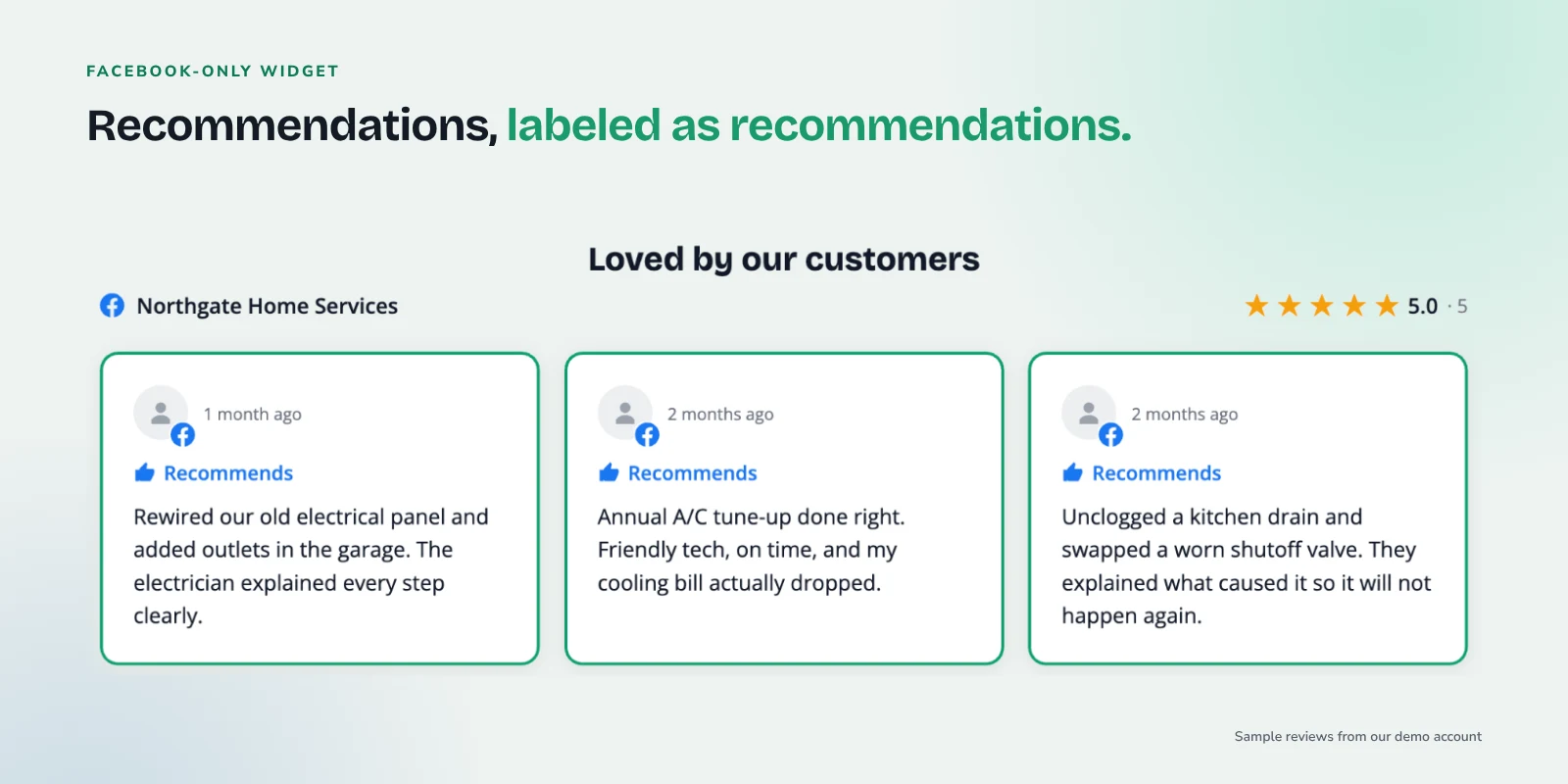
- Show recommendations as recommendations. In a BrandTrust widget, each Facebook recommendation is labeled "Recommends" instead of being given a star score the customer never chose. Keep that label visible when you style the widget.
- Label the source clearly. If it came from Facebook, say so. Visitors understand "Recommends [Your Business] on Facebook" without any extra explanation.
- Be careful with averages. If you show a headline number, make sure it is honest about what it is built from. BrandTrust calculates the headline rating and total count from all imported reviews, not just the ones you choose to feature, so filtering a widget does not inflate the number.
- Don't expect search stars. Google's review snippet guidelines say a business's own reviews shown on its own site, including through an embedded third-party widget, are not eligible for the star review feature. Reviews on your site are there for the people reading the page.
If you want to understand what review schema does and doesn't do, our post on review schema markup covers it in more detail.
Connecting your Facebook Page to BrandTrust
BrandTrust imports the existing reviews from sources you connect and keeps them synced automatically. It does not ask your customers for reviews. It displays and manages the ones you already have.
Here is the general flow:
- Create a free account at BrandTrust.
- Add Facebook as a source. Follow the connection steps in the app. You will need to be someone who can manage the Facebook Page you want to connect.
- Let the first import finish. Your recommendations come in, and on the free plan they refresh with a daily auto-sync after that.
- Build a widget. Pick a layout: grid, list, carousel, masonry or badge. A badge opens a popup of reviews, which works well in a hero section or sidebar where space is tight.
- Filter, order and feature. Choose which reviews show first, hide ones that don't fit the page, and feature your strongest written recommendations. Your headline rating and count still reflect every review.
The Facebook recommendations widget page has more on what the widget shows.
Embedding the widget on your site
Every BrandTrust widget embeds with one snippet: a div plus a script tag. Paste it where you want the reviews to appear, and it works on WordPress, Shopify, Wix, Squarespace, Webflow, Framer or plain HTML.
WordPress
You have two choices on WordPress:
- Paste the snippet into a Custom HTML block (or your page builder's HTML element) wherever you want reviews to appear.
- Use the native WordPress plugin. The plugin renders reviews on your own server, and plugin views do not count against your monthly view allowance. Uncapped plugin views are part of the Growth plan.
If page speed is a concern, our guide on embedding reviews in WordPress without slowing your site goes through the options. There is also a dedicated WordPress reviews widget page.
Other platforms
On Wix, Squarespace, Webflow, Framer and Shopify, look for the platform's embed or custom code element and paste the snippet there. On a hand-coded site, paste the snippet where the reviews should render.
Where to place Facebook recommendations
Placement matters more than people expect. A few spots that tend to make sense for local businesses:
- Homepage, near the top. A badge in the hero or right under it gives visitors a quick trust signal without taking over the page.
- Service pages. Put reviews that mention that service on that page. A plumbing customer reading about water heaters cares more about a water heater recommendation than a general "great company."
- Contact or booking pages. People often hesitate right before they reach out. A short list of recent recommendations can help here.
Matching reviews to pages by hand gets tedious. On the Growth plan, Smart Tags auto-tag reviews by keyword so reviews that mention a service or location flow to the matching page. Our post on showing the right reviews on the right pages goes deeper on this.
Combining Facebook with Google reviews
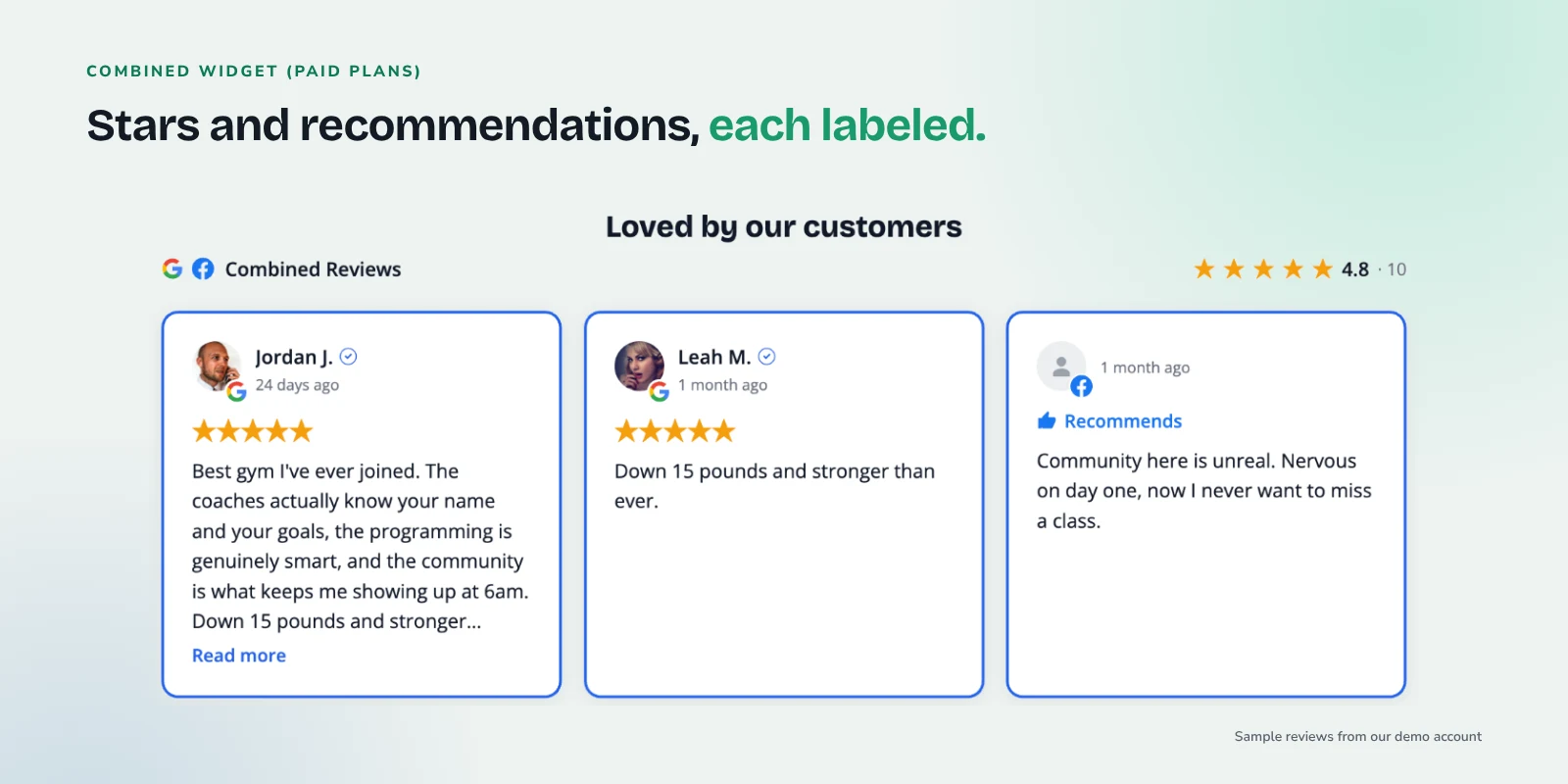
Most local businesses have recommendations on Facebook and reviews on Google. On paid plans (starting with Essentials), you can combine review sources in one widget. Each review in a combined widget is labeled by its source, so visitors can see that one review is a Facebook recommendation and the next is a Google star rating.
That labeling is important here. Google reviews carry star ratings. Facebook recommendations carry a yes or no. Showing them together is fine as long as each one is presented as what it is. See current plans for which features sit on which tier.
If you haven't set up Google yet, start with how to add Google reviews to your website or the Google reviews widget page.
Keep reviewer privacy in mind
Reviewers posted on Facebook, not on your website. A few habits help:
- Respect audience choices. Facebook only counts public recommendations toward a Page's rating, and a reviewer can change who sees their review at any time. Showing public reviews is the sensible default.
- Let removals flow through. If a reviewer deletes a recommendation or Facebook removes it, auto-sync keeps your widget in line with the source instead of keeping a stale copy.
- Think about sensitive industries. If you're in healthcare or wellness, a recommendation can reveal that someone was a patient or client. Be thoughtful about which reviews you feature, and don't add details the reviewer didn't share. Our post on responding to negative reviews includes a section on healthcare replies.
- Protect visitors too. BrandTrust serves reviewer photos through its own image proxy, so a visitor's IP address is not exposed to the source platform when the widget loads.
If your industry has its own privacy rules, keep those in mind when you choose which reviews to feature.
Common problems and fixes
My Page doesn't have a Reviews tab. Recommendations are probably turned off. Facebook's help page on turning Recommendations on or off shows where the setting lives in your Page settings.
The count on my site doesn't match what I see on Facebook. Facebook says review counts can differ depending on who is viewing, because some reviews are shared with custom audiences such as the reviewer's friends. When you switch into your Page as an admin, the count you see reflects public reviews.
My Page shows no rating. Facebook may not show a rating until a Page has at least 5 reviews.
A review disappeared. It may have been removed by the reviewer, or by Facebook under its spam policies. Your widget follows the source on the next sync.
The connection stopped syncing. Reconnect the source by following the connection steps in the app. Admin role changes on the Facebook Page are a common cause, so confirm you still manage the Page.
Frequently asked questions
Does Facebook still use star ratings?
Facebook's current flow asks customers whether they recommend a business, with a Yes or No choice and a written review. Facebook describes a Page's rating as being based on the reviews and recommendations people share, and that rating only includes public recommendations.
Can I show Facebook recommendations and Google reviews in one widget?
Yes, on paid plans. Combining sources starts on the Essentials plan, and each review is labeled with its source so visitors can tell a Facebook recommendation from a Google rating. See current plans.
Will Facebook recommendations on my website get me stars in Google search?
No. Google's review snippet guidelines say reviews a business shows about itself on its own site, including through a third-party widget, are not eligible for the star review feature.
Do I have to show every Facebook recommendation?
You can filter, order and feature reviews in BrandTrust. Your headline rating and total count are always calculated from all imported reviews, so hiding a review from a widget doesn't change the number.
Does the widget work outside WordPress?
Yes. The same one-snippet embed works on Shopify, Wix, Squarespace, Webflow, Framer and plain HTML sites.
Try it with your own reviews
If your Facebook recommendations are sitting on your Page where most website visitors never see them, try putting them to work on your site. The free plan includes one widget, every layout and daily auto-sync, with no credit card and no trial timer.