If you want to embed reviews in WordPress without slowing your site, start by choosing how the reviews are delivered, then check the result on your actual pages.
A review section should help visitors evaluate your business without making the page frustrating to use. That means paying attention to the installation, layout, and surrounding website.
This guide is for WordPress site owners and agencies managing client websites. We’ll explain how BrandTrust.reviews’ native plugin fits into that process and walk through a practical way to add reviews and test their impact.
Understand what a review widget adds to a page
A review display can include text, images, styling, and interactive behavior. Depending on its implementation, it may also introduce scripts and network requests.
Google’s web performance guidance explains that third-party scripts can add loading costs through additional requests, dependencies, and other resources (see Google’s guidance on third-party JavaScript).
That does not mean every widget will make a website noticeably slower. It means you should assess the implementation rather than assuming all review displays behave the same way.
The number of plugins installed is not enough information. Look at what the page actually loads and how it behaves after the change.
Why server rendering is useful for WordPress reviews
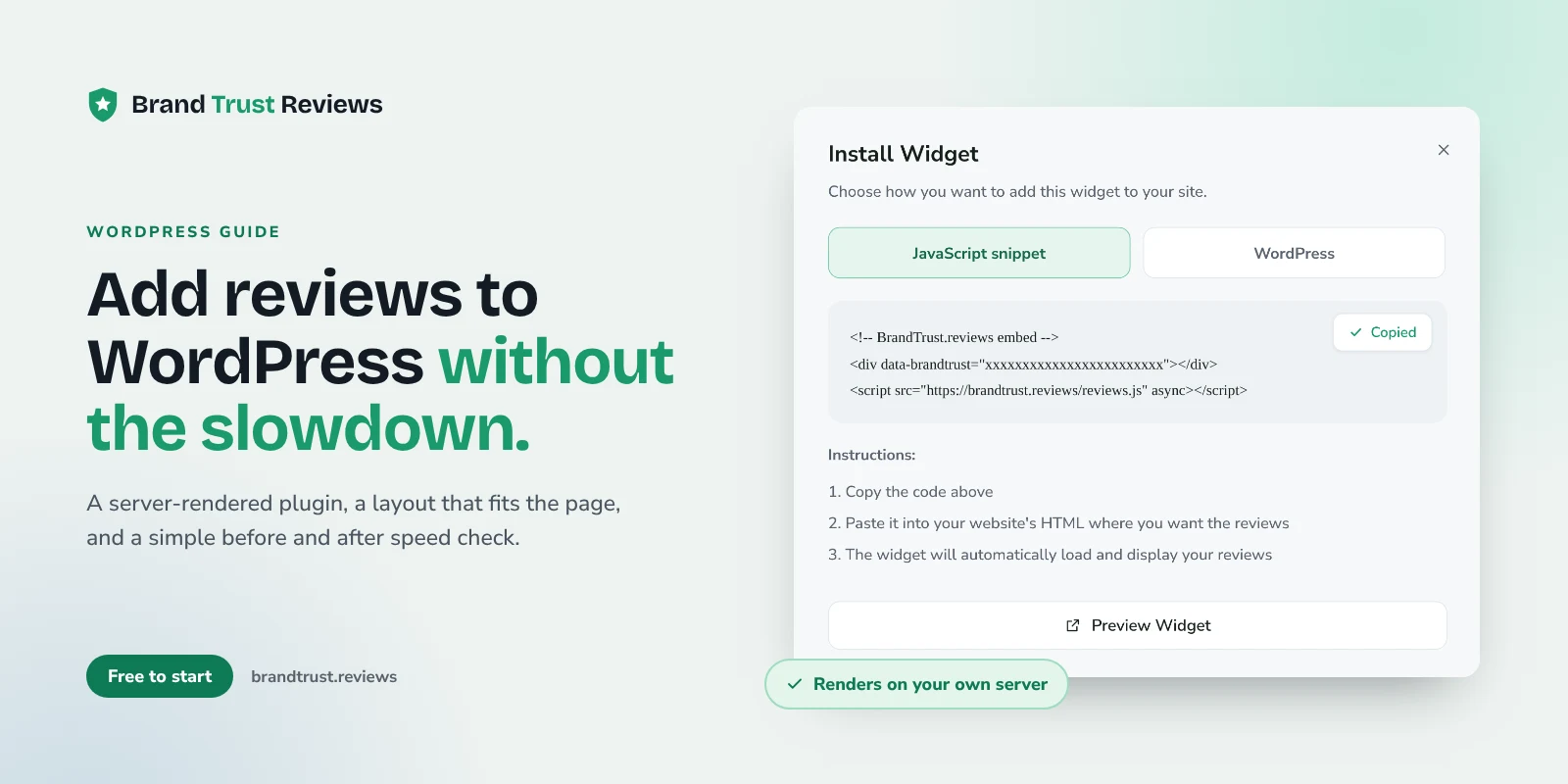
BrandTrust.reviews offers a native WordPress plugin that renders reviews on your own server.
Server rendering means the review content is prepared on the server rather than relying entirely on the visitor’s browser to build the display.
That is a useful foundation for a WordPress installation. It brings review rendering into your website’s own delivery process.
It does not mean the page has no scripts, styles, images, or processing costs. Your hosting, theme, other plugins, and chosen layout still matter.
WordPress’s own optimization guidance identifies server infrastructure, database work, and website resources as parts of the wider performance picture (see WordPress’s website optimization lesson).
Native plugin views do not count against plan limits
There is also a usage benefit: views served through BrandTrust.reviews’ native WordPress plugin do not count against plan limits.
That can be useful when placing reviews on frequently visited pages.
This is separate from a performance claim. It describes how native plugin views are counted, not a guarantee about loading time.
Learn more on the WordPress reviews widget page, and see current plans for available features and usage allowances.
Step 1: Measure the page before adding reviews
Choose the page where you plan to add the review section. Start with one page so you can assess the change clearly.
Open it on desktop and mobile. Note any existing problems:
- Does the main content take a while to appear?
- Does the page move around while loading?
- Are buttons slow to respond?
- Does a large image dominate the initial load?
- Is the mobile layout already crowded?
Run the published URL through PageSpeed Insights and save the result for comparison.
Treat the test as a baseline, not a verdict on your entire website. Repeat the measurement a few times so you do not build your conclusion around one unusually fast or slow run.
Avoid changing the theme, adding several plugins, and installing reviews at the same time. Separate changes are easier to evaluate.
Step 2: Connect your reviews and install the native plugin
Set up your review sources in BrandTrust.reviews, then follow the native WordPress plugin’s installation and connection instructions.
Check that the connected reviews belong to the correct business or location before placing them on a public page.
BrandTrust.reviews supports Google, Facebook, Etsy, eBay, WooCommerce, and Judge.me, with TripAdvisor available in limited access. On paid plans, you can combine supported sources in a single widget, with each review labeled by its source.
For a local service business, a Google reviews widget may be the starting point. A store may also have useful feedback from its sales channels. Our guide on how to add Google reviews to your website covers source setup and placement in more detail.
Use one installation method for the intended display. If you are replacing an earlier review section, check that the old embed has actually been removed from that placement.
Step 3: Choose a layout that fits the page
Start with the amount of information a visitor needs at that point.
A homepage might benefit from several readable reviews. A narrow sidebar may be better suited to a compact badge.
BrandTrust.reviews offers grid, list, masonry, carousel, and badge layouts.
Use a grid or list for a dedicated section
A grid works well when you want several reviews visible together. A list gives longer comments more room.
Start with a modest selection. Check whether each additional review contributes useful detail or simply repeats what the visitor has already read.
You can place a more substantial collection on a dedicated reviews page without making every service page equally long.
Use a badge in a hero section or sidebar
A badge provides a compact rating display that visitors can click to open a popup with reviews.
That makes it useful when you want reviews accessible without using a large portion of the visible page.
A compact appearance does not by itself prove that fewer resources load. Test the result rather than treating the badge’s size as a performance measurement.
On mobile, check that the popup is readable, scrolls as expected, and is easy to close.
Step 4: Keep the review section focused
Relevance helps you keep the display manageable.
On a service page, feature feedback about that service. On a location page, choose reviews that describe the relevant location.
On paid plans, BrandTrust.reviews supports keyword auto-tagging, so reviews mentioning a particular service or location can flow onto the matching page automatically.
Start with clear terms and check the matches. A keyword can appear in an unexpected context, so the selection still deserves an occasional review.
You can curate the featured reviews while keeping the overall picture honest. The headline rating and total count reflect all reviews, not just the ones you choose to feature.
Step 5: Check caching and review freshness together
Caching can help WordPress serve pages with less repeated work. WordPress documents caching as an important part of website performance (see WordPress’s caching guidance).
Use the caching setup appropriate to your website and hosting. Before adding another caching plugin, check what your host or existing tools already provide.
Then verify the review display as a logged-out visitor.
BrandTrust.reviews keeps connected sources synced automatically, but your website’s caching behavior is another part of what visitors ultimately see.
After a review update, check whether the public page reflects it. If the account shows updated information while the website does not, investigate the relevant page or hosting cache as part of the diagnosis.
Avoid disabling caching across the entire website as your first troubleshooting step. Identify the specific layer involved.
Step 6: Compare the finished page with your baseline
Run the same checks you performed before installation.
Use the same page and comparable test conditions. Look for a consistent change across several runs rather than reacting to one score.
Check the experience directly:
- Does the main page content still appear promptly?
- Does the review section push other content around as it loads?
- Can you tap links and buttons comfortably?
- Are reviewer images displayed at a sensible size? (BrandTrust.reviews serves reviewer photos through its own image proxy, so a visitor's IP address is not exposed to the source platforms.)
- Does the badge popup behave correctly?
- Is the page still easy to use on a phone?
If you find a problem, change one thing at a time. Try a smaller display, investigate conflicting scripts, or review the surrounding page design.
A performance report helps locate issues. The finished page should also feel usable.
Common mistakes to avoid
Leaving an old review embed active
Replacing the visible section may not remove code added elsewhere in a theme or page builder.
Check the old installation location before assuming the previous widget is gone. Remove code only after confirming what it belongs to.
Blaming the widget for an existing problem
A large hero image or slow server response may have been present before installation.
Use your baseline to distinguish an existing issue from something introduced by the review setup.
Applying aggressive optimization settings without checking the result
Changes to script loading or other optimization settings can affect interactive elements.
After changing those settings, test the actual review display, especially badge and popup interactions. Keep changes reversible while you investigate.
Promising that a plugin has no performance impact
Any additional content requires resources somewhere.
The useful goal is a review section that fits your site’s performance budget and helps visitors. Claims of zero impact need evidence from the specific implementation.
Frequently asked questions
Will a review plugin slow down my WordPress site?
It depends on the plugin, layout, and website. Measure the page before and after installation. BrandTrust.reviews’ native plugin renders reviews on your own server, but the finished page still needs testing.
Should I use the native WordPress plugin or the JavaScript embed?
For this WordPress workflow, start with the native plugin. It provides server rendering, and its views do not count against plan limits. BrandTrust.reviews also offers a JavaScript embed for other installation needs.
Do I need to display every review on my homepage?
No. Choose a useful selection for the available space. A grid or list can present several reviews, while a badge opens a popup and works well in a hero section or sidebar.
Will my reviews stay current automatically?
BrandTrust.reviews keeps connected sources synced automatically. Check your published pages after updates as well, since your WordPress caching setup can affect when refreshed content becomes visible.
Try it with your own reviews
Start with one page, choose a layout that fits, and compare the result with your baseline. You can try the BrandTrust.reviews free plan with no credit card and no trial timer.