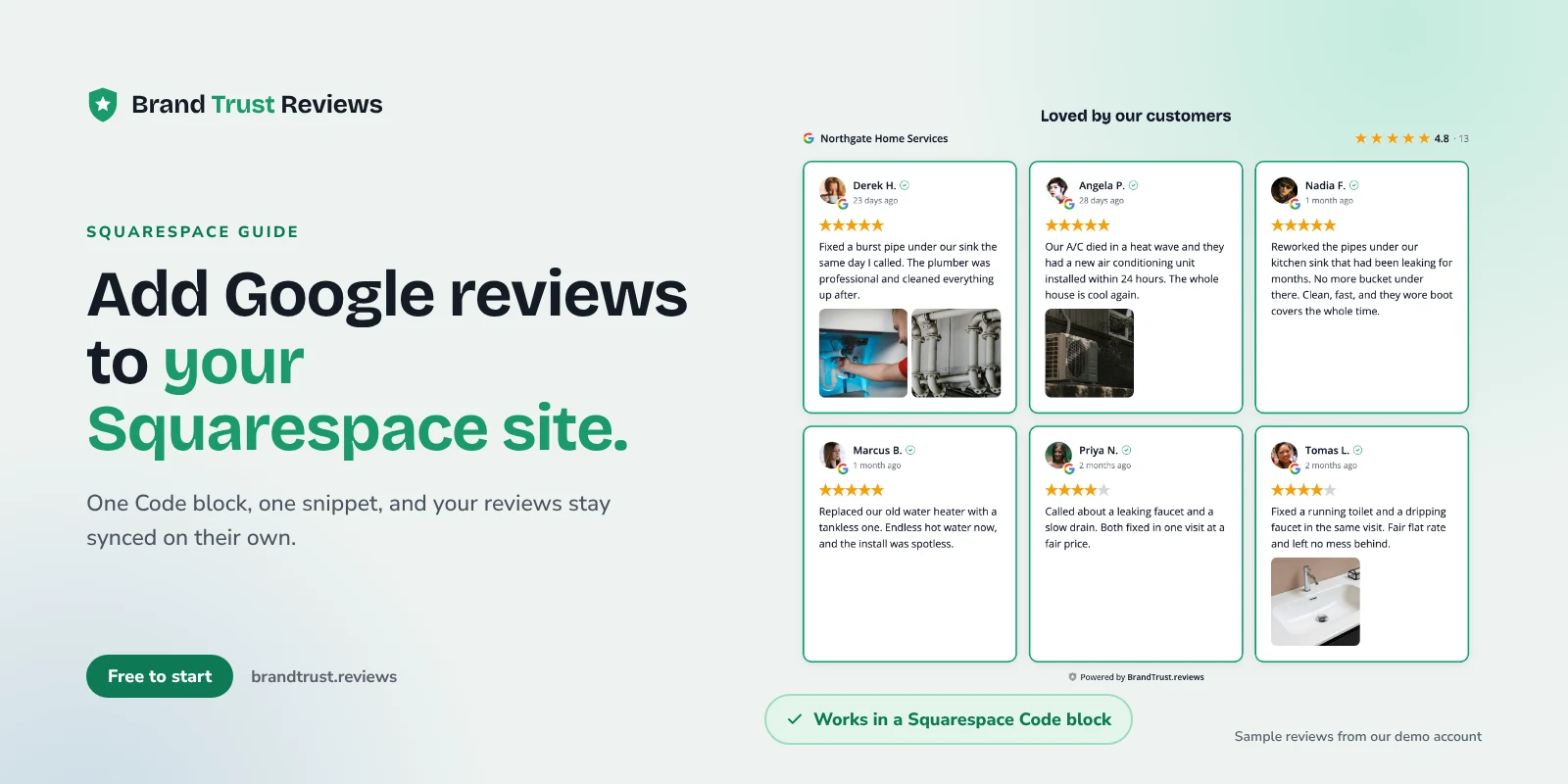
If you want to add Google reviews to Squarespace, the cleanest route is Squarespace's own Code block. You build the review widget once, paste one snippet into a Code block on the page, and new reviews keep showing up without anyone copying them over by hand.
This guide is for Squarespace site owners and for the designers and agencies who run Squarespace sites for clients. It walks through the setup, the plan detail to check first, why the reviews may not appear while you are logged in, and how to check the mobile layout.
What you need before you start
Have these ready:
- Your Google Business Profile. This is the listing your Google reviews belong to. If the business has several locations, know which listing goes with which page.
- A Squarespace plan that allows JavaScript in Code blocks. Squarespace's Code blocks article says every plan can use Code blocks for plain text, HTML, Markdown and CSS, but adding JavaScript or iframes is available on the Core, Plus, Advanced, Business, Commerce Basic and Commerce Advanced plans. Squarespace renames and reshapes its plans from time to time, so if you are not sure where your site stands, check your plan in Squarespace before you begin.
- Permission to edit the site. You will add a block to a page and save it.
- One page to start with. Your homepage or your most important service page is a good first spot.
You do not need an extension or any coding experience. You will paste a snippet, not write one.
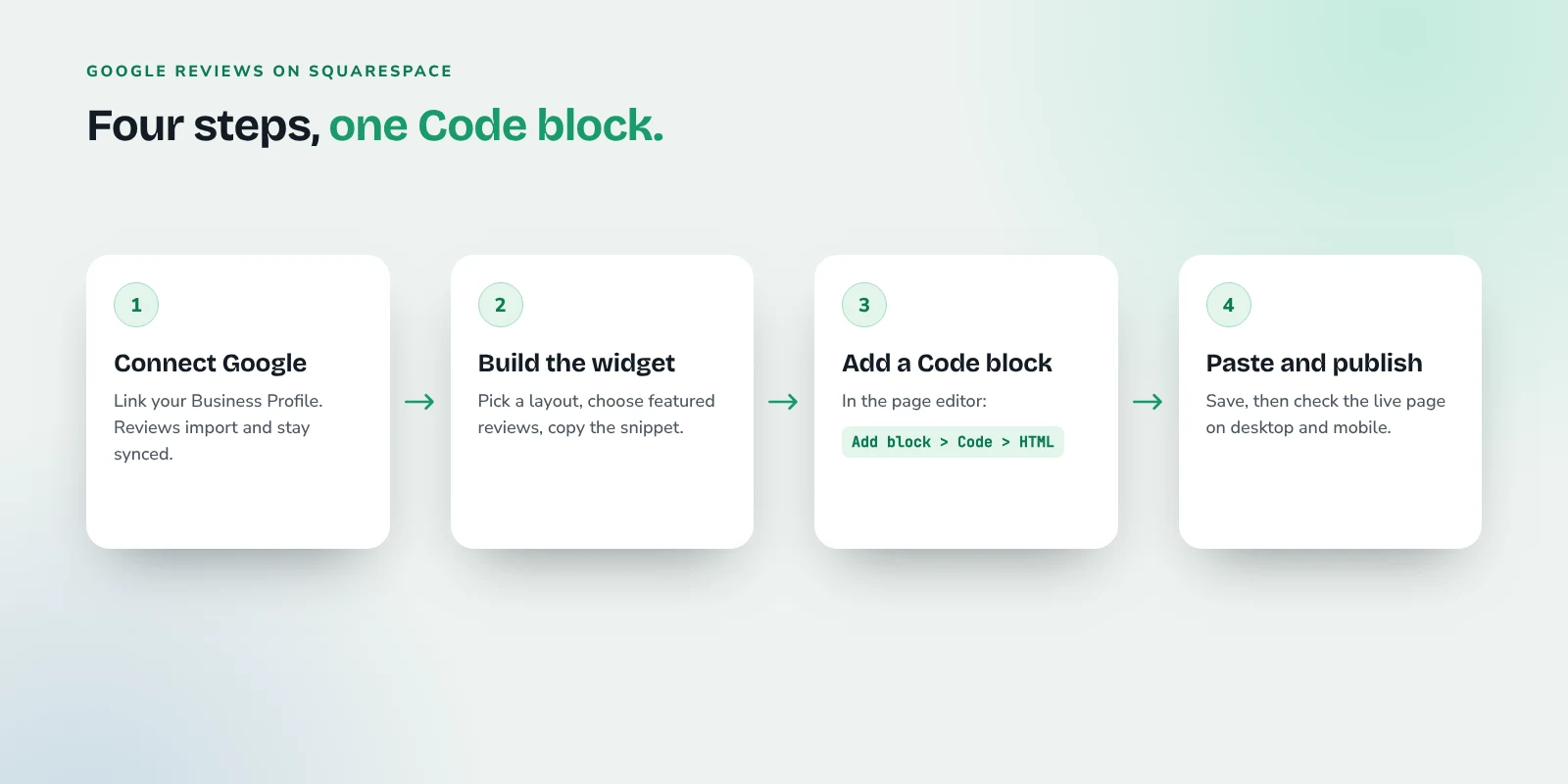
Step 1: Connect Google and build your widget
Create a free BrandTrust.reviews account and connect your Google review source. Your existing reviews are imported and then kept in sync automatically, so the widget stays current on its own.
Look over the imported reviews first and confirm they belong to the right business and location.
Then pick a layout:
- Grid: several review cards side by side. Works well for a dedicated reviews section.
- List: one review per row, giving longer comments room to breathe.
- Carousel: a row of reviews visitors can scroll or swipe through, useful when vertical space is tight.
- Masonry: cards of different heights in a staggered arrangement.
- Badge: a compact rating that opens the reviews when clicked. It fits neatly in a header area, hero section or sidebar.
You can filter and order reviews and choose which ones to feature. The headline rating and total review count still reflect all of your reviews, not only the featured ones, so the summary stays honest.
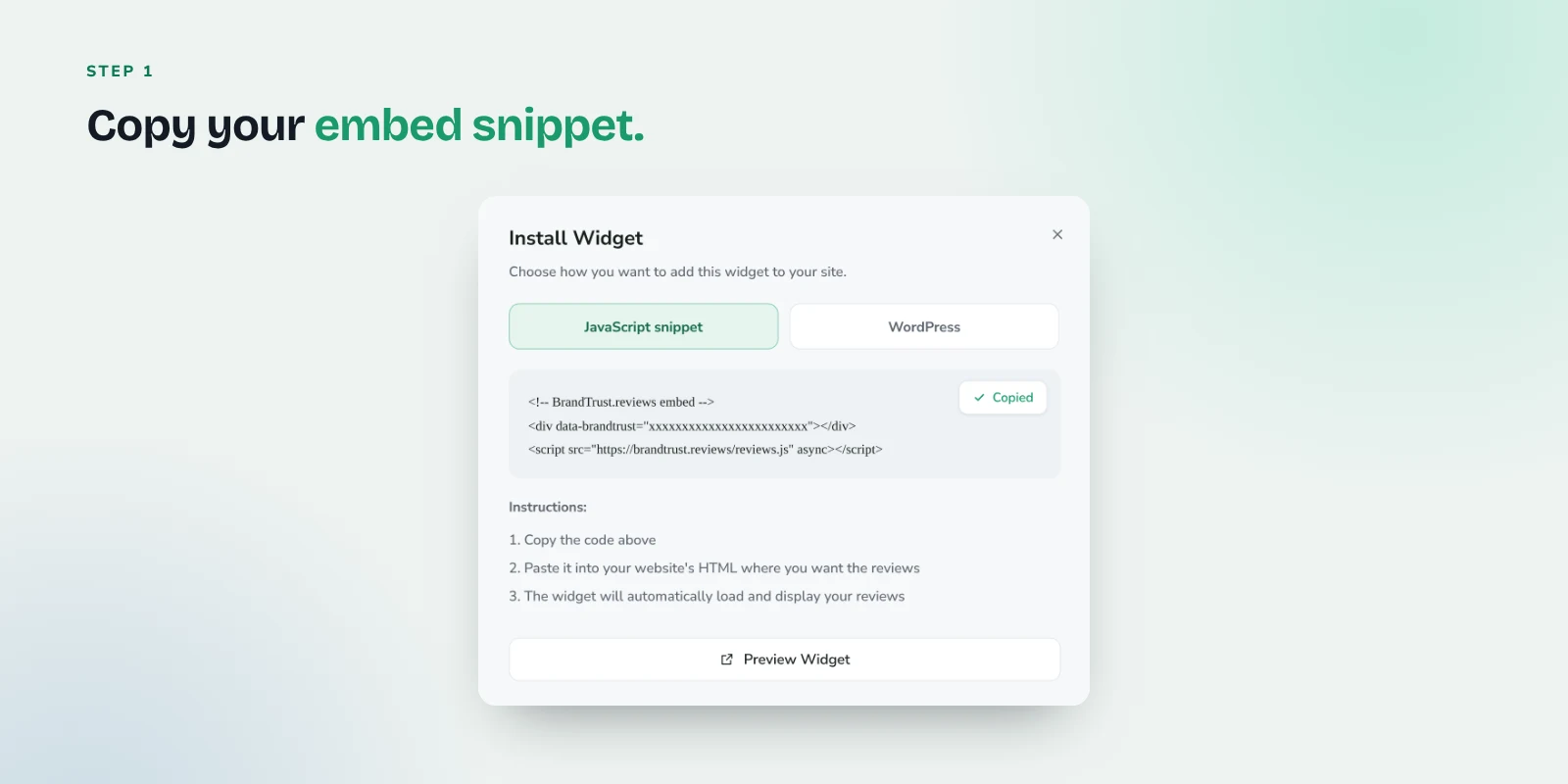
When the widget looks the way you want, open the Install Widget window and copy the embed snippet. It is one short block of code: a div with a data-brandtrust attribute, followed by a script tag.
Step 2: Add a Code block and paste the snippet
Open the page in the Squarespace editor. Squarespace's Code blocks article describes the steps like this:
- Edit the page or post where the reviews should appear.
- Hover over the section, click Add block (or the + icon), then choose Code.
- Click the pencil icon on the new block to open the block editor.
- In the Type menu, choose HTML. Squarespace notes that JavaScript is displayed as text by default, and choosing HTML is what makes it run.
- Paste your BrandTrust.reviews snippet into the text field. Keep the Display Source toggle off, since that setting shows code as text instead of running it.
- Close the block editor and save the page.
If a label looks different in your editor, that help article is the place to check, since Squarespace updates its interface over time.
What about Code Injection?
Squarespace also has Code Injection, which adds code to the header or footer of every page, plus a per-page header option. Squarespace lists Code Injection as available on the Core, Plus, Advanced and some legacy billing plans, so it is not a workaround for a plan that cannot run JavaScript in Code blocks.
It is also the wrong tool for a review section. Squarespace says Page Header Code Injection adds code to the page's <head> tag, which is meant for things like tracking or verification scripts. Your reviews need to appear in a specific spot on the page, and the Code block is what puts them there.
Step 3: Publish and check the live page
Here is the Squarespace detail that trips people up. The Code blocks article says that, as a security measure, sometimes your code won't appear when you are logged in, even though visitors can see it. If the block looks empty in the editor, that does not necessarily mean anything is broken.
To check your work:
- Use Squarespace's Preview in Safe Mode option, which the help article suggests for viewing embedded items.
- Better yet, open the live page in a private or incognito browser window where you are not logged in. That is what your visitors see.
Make sure the reviews load and the layout fits the section width.
Step 4: Check the mobile layout
Squarespace's Device view article explains that on version 7.1 sites you can switch to mobile by clicking the Mobile View icon in the top-right corner of the preview. With Fluid Engine, you can edit the mobile layout independently of the desktop layout. In the classic editor, mobile edits also affect desktop.
On mobile, check that:
- The Code block is not squeezed into a narrow column or cut off.
- Review text is readable without zooming.
- A badge opens and closes the reviews easily with a tap.
The same article says device view is not 100% accurate for every phone, and your reviews may not render while you are logged in anyway. So the final check should happen on a real phone, on the live page. If a grid feels cramped on small screens, a list, carousel or badge layout is usually easier to read.
Where to put Google reviews on a Squarespace site
A single "Reviews" page is fine, but reviews earn more when they sit next to the decision a visitor is making.
- Homepage: a short grid or carousel of general reviews about reliability and service introduces the business.
- Service pages: reviews that mention that service answer the question a visitor has on that page.
- Location pages: show reviews for the matching location so people know which team is being described.
- Header area or sidebar: a badge keeps your rating visible without taking much room, with the full reviews one click away.
On paid plans, Smart Tags can handle the sorting. You give a tag a few keywords, and reviews that mention them are tagged automatically as they sync, so a widget on a specific service page can show reviews about that service. Our guide to showing the right reviews on the right pages covers this in more detail, and the broader guide on how to add Google reviews to your website goes deeper on placement.
Adding Facebook recommendations and other sources
BrandTrust.reviews also connects to Facebook recommendations, Etsy, eBay, WooCommerce and Judge.me for Shopify stores, with TripAdvisor in limited access. You can also add reviews manually.
On paid plans, you can combine several sources in one widget, and each review is labeled with where it came from. If you do, give the section an accurate heading such as "What customers say" rather than "Google reviews." See current plans for what each plan includes.
Common problems and fixes
The block is empty in the editor. This is often the logged-in security behavior Squarespace describes. Check the live page in a private window before changing anything.
The code shows up as text on the page. Open the block editor, set the Type menu to HTML, and make sure Display Source is off.
Nothing shows on the live page. Confirm you pasted the complete snippet, both the div line and the script line, then save again. Also confirm your plan supports JavaScript in Code blocks.
Reviews show on one page but not another. Squarespace's troubleshooting notes say code may not render on a page inside an Index, and that Ajax loading can cause issues on some sites. Its article suggests testing by removing the page from the Index or disabling Ajax.
Custom code makes the editor hard to use. Squarespace recommends using Disable Scripts in Preview so you can edit or remove the code safely. Visitors still see your site normally.
A new review is not showing yet. Connected sources sync automatically, but not instantly. Give it some time, then check your widget's filters, since a minimum rating or tag filter may be hiding it.
Frequently asked questions
Which Squarespace plans can show a Google reviews widget?
The widget needs JavaScript in a Code block. Squarespace's help center lists that as available on the Core, Plus, Advanced, Business, Commerce Basic and Commerce Advanced plans. If your plan is not on that list, or you are unsure, check your plan in Squarespace.
Why can't I see my reviews while I'm editing?
Squarespace says custom code sometimes won't appear when you are logged in, even though visitors can see it. Use Preview in Safe Mode or open the live page in a private window to check.
Will Google review stars show up next to my Squarespace site in search?
Don't expect them. Google's review snippet guidelines say a business's pages are ineligible for review stars when the business controls the reviews about itself, and that includes reviews shown through a widget. Our article on review schema explains what the markup does and does not do.
Is there a free way to add Google reviews to Squarespace?
Yes. BrandTrust.reviews has a free plan with no credit card and no trial timer, and the embed works on it. Paid plans add more widgets, higher view allowances, combined sources and Smart Tags. See current plans for details.
Does the same process work on Wix?
The idea is the same, but the editor steps differ. Our guide on how to add Google reviews to a Wix website covers Wix's Embed HTML element.
Try it with your own reviews
Start with one page, check it logged out on desktop and on a real phone, then expand from there. You can try the BrandTrust.reviews free plan with no credit card and no trial timer, see the Google reviews widget for what it shows, or visit the Squarespace setup page for a quick overview.