Putting salon reviews on your website is one of the simplest ways to help a first-time client feel ready to book. Barbershop reviews do the same job. Your clients have already written them on Google and Facebook, describing the cut, the color, the chair and the person behind it, and most salon and barbershop sites either skip them or bury them on a single testimonials page.
This guide is for hair salons, barbershops, nail and lash studios, and the agencies that build their sites. It covers which reviews to show, where to put them, how to route them to the right service or stylist, and how to make the widget look like it belongs on your site.
What a new client wants to know before booking
Booking a new stylist is personal, and a bad result is visible for weeks. Before they tap "Book now," most new clients are quietly checking a few things:
- Skill with their hair type. Curly, coily, fine, thick, gray coverage, a big color change. People look for someone who has done their kind of hair before.
- The consultation. Did the stylist listen? Did they explain what was realistic?
- Cleanliness. Clean stations, fresh tools, sanitized nail beds.
- Punctuality. Running 40 minutes behind on a lunch break appointment is a dealbreaker for a lot of people.
- Price clarity. No surprise add-ons at checkout, a clear quote for color or extensions.
- The vibe. Relaxed or upbeat, quiet or chatty, kid friendly, a good place for a first fade.
Reviews are where a stranger hears about all of this from someone like them.
Which reviews to feature
You don't need to feature only five-star reviews with three exclamation points. The most useful reviews for a salon site are specific. Look for ones that:
- Name the service ("balayage," "skin fade," "gel-X," "classic lash set")
- Mention a hair type or concern ("my curls," "fine hair that never holds volume")
- Name the stylist or barber
- Describe the consultation or how the stylist handled a correction
- Mention timing, cleanliness or price in a concrete way
In BrandTrust you can filter and order reviews and feature the ones you want near the top. Featuring changes what shows first, not the math: the headline rating and total review count always reflect all of your reviews.
Where to put reviews on a salon or barbershop site
A few well placed reviews on the pages people actually visit do more than a long wall of them. For the general approach, see how to show the right reviews on the right pages. Here is how it maps to a salon site.
Homepage
A compact carousel near the top, just below your booking button, sets the tone in a few seconds.
Services and pricing page
This is the page where people decide. Put a small widget next to each service section:
- Color reviews that mention balayage, highlights, gray coverage or a color correction
- Cuts reviews about haircuts, bangs, curly cuts or kids' cuts
- Extensions reviews that talk about the match, comfort and how long they lasted
- Beard trims and fades for barbershops, reviews that mention the lineup, the hot towel or a clean fade
A review about extensions sitting right under your extensions price answers the question the visitor has at that exact moment.
Stylist and barber pages
If you have individual team pages, filter each one to reviews that mention that person by name. A client looking at "Maya" wants to read about Maya, not the salon in general. Many clients book a person, not a business.
Booking page
A short list or grid of recent reviews near the booking form can reassure someone who is one click away from committing.
Gift card page
Gift card buyers are often booking for someone else. Reviews that mention a relaxing experience or a great first visit help them feel confident giving it.
A badge in the header
A small rating badge in the header sits on every page and opens your reviews when clicked. It's a quiet signal that doesn't compete with your booking button.
Routing reviews by service or stylist with tags
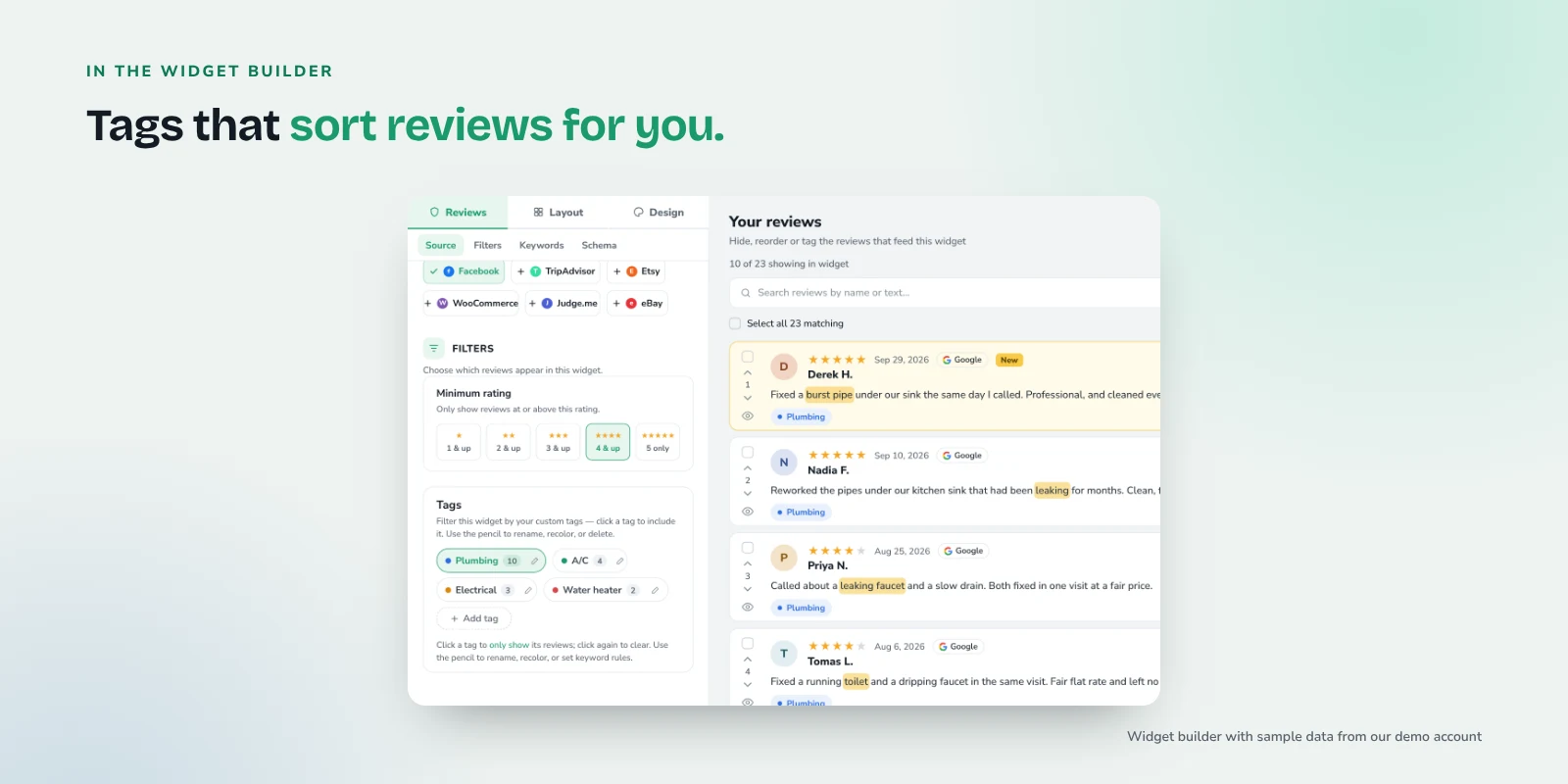
Sorting every new review by hand gets old fast. Tags solve that. Basic tags are available on paid plans, and on the Growth plan, Smart Tags auto-tag reviews by keyword.
Set up a Smart Tag for each stylist's first name, and for the services you want to highlight, like "balayage," "extensions," "fade" or "lash." When a new review comes in that mentions "Maya" or "balayage," it flows into that tag automatically. Then build a widget for Maya's page that shows only the "Maya" tag, and a widget for your color section that shows only the "balayage" and "color" tags.
Use first names as clients actually write them, add common spelling variants, and check what gets tagged after the first sync if a name is also an ordinary word.
Review photos of finished looks
Some reviewers attach photos of their finished hair, nails or lashes. Those photos are often more convincing than your own portfolio shots, because they're taken in normal light by a happy client, not by the stylist.
BrandTrust shows review photos on every plan, including free. Reviewer photos are served through BrandTrust's image proxy, so a visitor's IP address isn't passed to the source platform when the page loads. If you have a lot of photo reviews, a masonry layout lets tall photo cards and short text cards sit together without awkward gaps.
Style the widget to match your brand
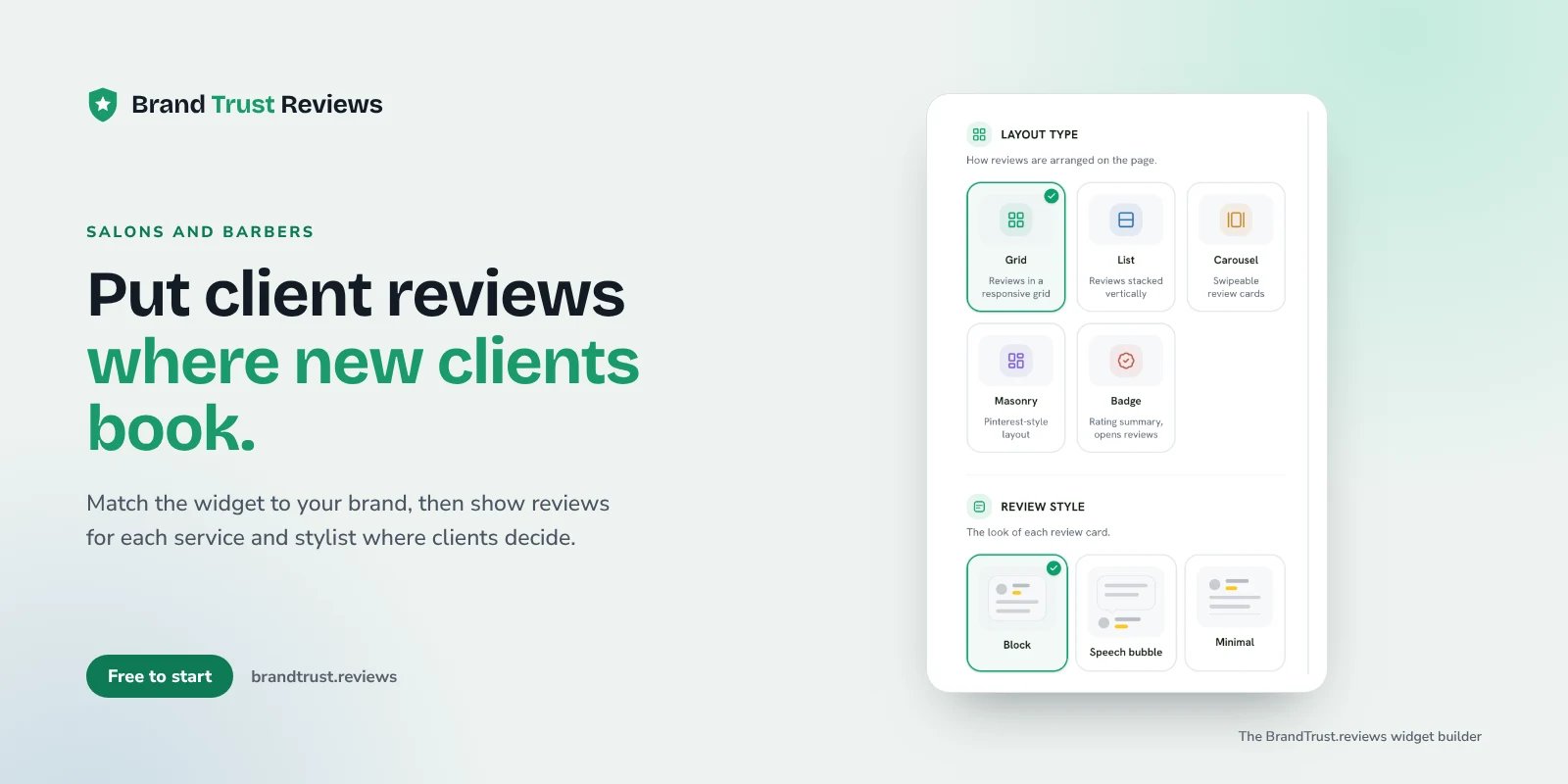
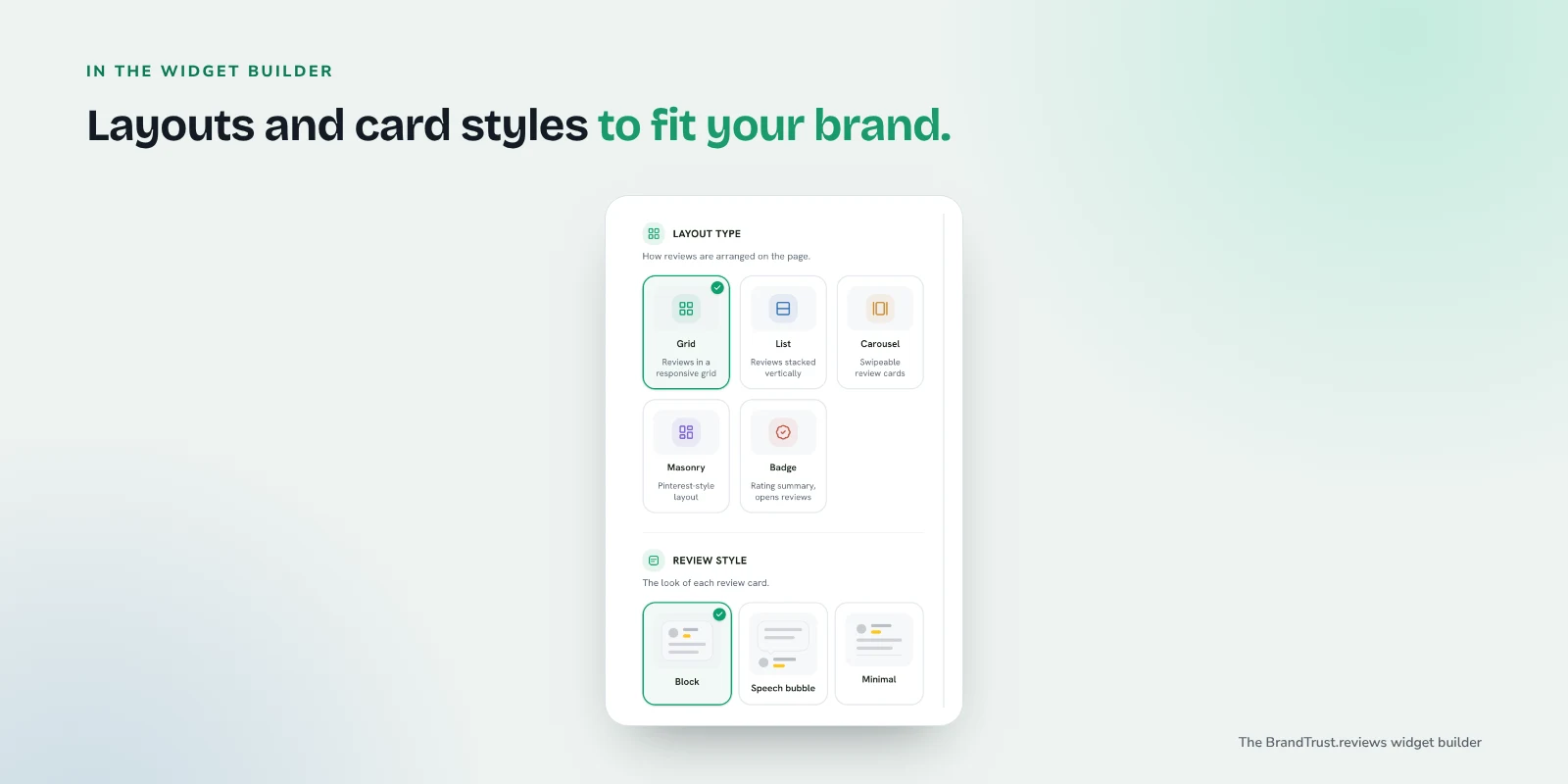
A generic gray review box can feel out of place on a salon site with a strong look. You can set the widget's colors and fonts to match your site, and choose a card style:
- Block cards for a clean, structured look on a services page
- Speech bubble cards for a friendly, conversational feel
- Minimal cards for an editorial site with a lot of white space
Layouts include grid, list, carousel, masonry and badge, and all layouts and styles are available on the free plan. On paid plans, custom CSS lets you or your agency fine tune spacing, borders and anything else to match the site exactly.
Combining Google reviews and Facebook recommendations
Many salons have reviews on Google and recommendations on their Facebook Page. On paid plans, you can combine both in one widget. Each review is labeled by its source, so a visitor can see which came from Google and which came from Facebook.
Facebook Pages use yes or no recommendations rather than star ratings, so it helps to show them as they are rather than as stars. Our Google reviews widget and Facebook reviews widget pages cover each source in more detail, and you can see current plans on the compare page.
BrandTrust imports your existing reviews and keeps them synced automatically (daily on the free plan), so a new review from this morning's client shows up without anyone copying and pasting.
Responding to reviews
Prospective clients read your replies too. A short, warm thank you on positive reviews is enough.
For a negative review, stay calm, keep it brief, and offer to make it right offline. Avoid arguing details of the appointment in public. Our guide on how to respond to negative reviews has examples you can adapt. On the Growth plan, you can reply to Google reviews from inside BrandTrust.
Asking clients for reviews at checkout
The best moment to ask is when a client is looking in the mirror and smiling. At checkout, a simple "Would you mind leaving us a quick Google review? It really helps new clients find us" works. A follow-up text or email later that day with a direct link catches people who forgot. Our post on how to ask customers for reviews, with templates has wording for in person, text and email.
Don't offer a discount or freebie in return: Google's Maps user content policy doesn't allow incentives for reviews.
It also helps to gently encourage specifics. "If you mention Maya or your color, it helps other clients find the right stylist" leads to the kind of reviews that tag and route well.
A quick checklist for salons and barbershops
- Connect Google and your Facebook Page.
- Add a carousel of mixed reviews to your homepage.
- Place service specific reviews next to color, cuts, extensions and beard trims on your services and pricing page.
- Filter each stylist or barber page to reviews that mention them by name.
- Add a small review widget to your booking and gift card pages.
- Put a rating badge in your header.
- Set up tags (or Smart Tags on Growth) for stylist names and key services.
- Show review photos of finished looks.
- Match the widget to your brand colors, fonts and card style.
- Reply briefly to new reviews and ask happy clients at checkout.
If your business also sells retail products, our guide to reviews for local shops and boutiques covers product reviews.
Frequently asked questions
Can I show different reviews on each stylist's page?
Yes. Create a widget for each stylist and filter it to reviews that mention their name. Basic tags are available on paid plans, and Smart Tags on the Growth plan tag new reviews automatically when they mention a keyword like a stylist's first name.
Do I have to show my negative reviews?
You choose which reviews to feature and in what order. Either way, the headline rating and total count reflect all of your reviews, so visitors get an honest number. A calm reply to a negative review often reassures people more than hiding it would.
Will salon reviews on my website give me stars in Google search?
No one can promise that. Google doesn't show review stars for a business's own reviews on its own website, including reviews shown through a third-party widget. Reviews on your site are there to help clients decide to book.
Does it work with my booking platform?
The widget embeds with one snippet (a div plus a script tag) on WordPress, Shopify, Wix, Squarespace, Webflow, Framer or plain HTML. If your booking page is part of your site and allows custom code, you can add it there too.
Try it with your own reviews
If you want to see your own salon's reviews styled to match your site, you can start on the free plan. There's no credit card and no trial timer, so connect Google, try a layout, and keep it if it helps.