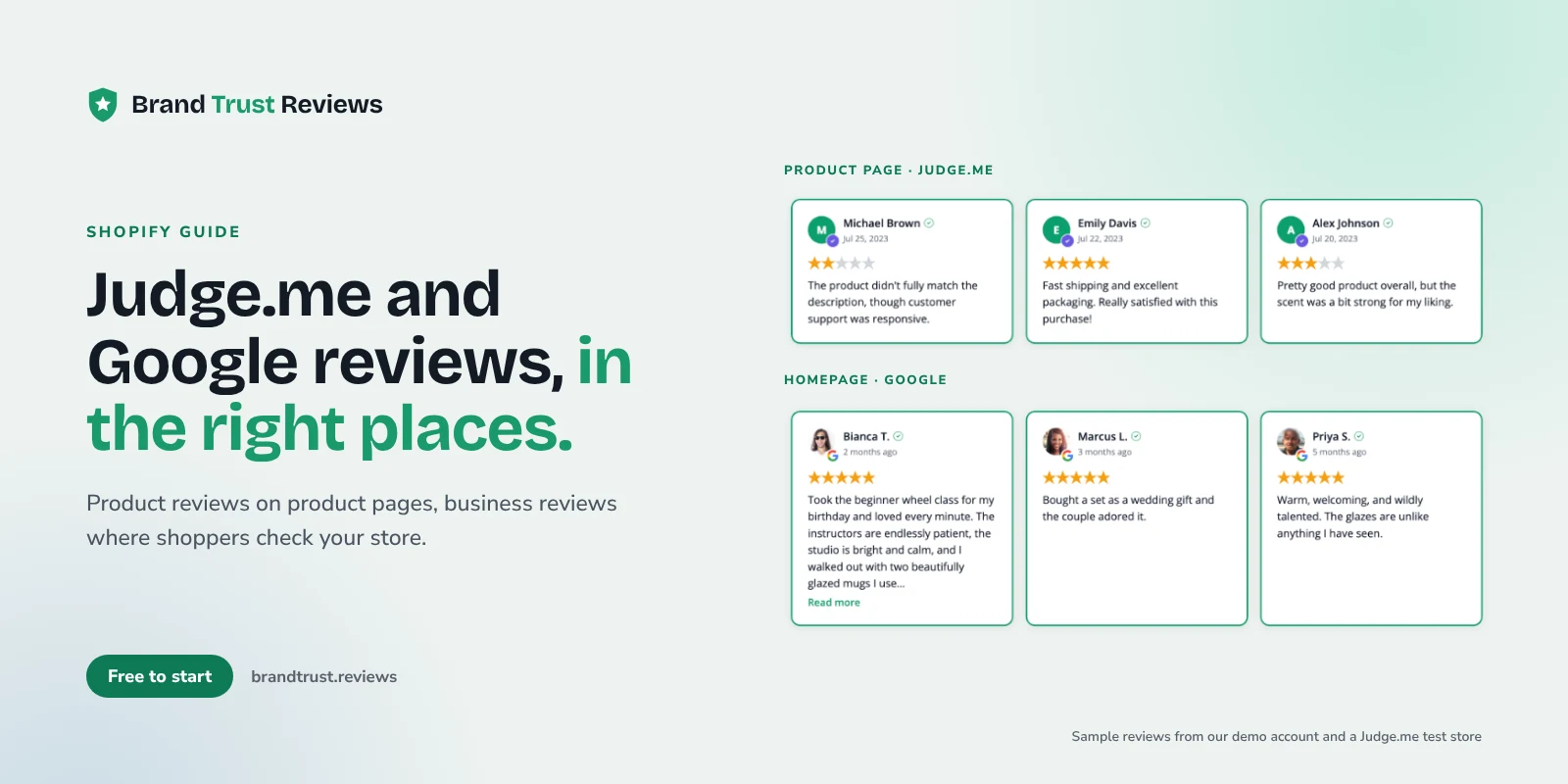
If you collect product reviews with Judge.me and also have a Google Business Profile, you already have two kinds of proof that your store is worth buying from. Showing Judge.me reviews and Google reviews on Shopify side by side, without muddling what each one means, is mostly a placement question: which reviews go on which page, and how clearly each one is labeled.
Below: why the two answer different questions, where each belongs, how to add a widget in the theme editor, and what to expect from Google on stars.
Product reviews and business reviews answer different questions
A shopper on a product page is asking, "Is this thing any good?" They want to know if the hoodie runs small, if the serum broke someone out, if the replacement part actually fit. Judge.me reviews answer that. They are tied to a specific product and written by people who bought it.
A shopper on your homepage or about page is asking something broader: "Is this a real business, and will they treat me well?" They want to know if orders ship on time, if returns are painless, if someone answers the phone. Google reviews (and Facebook recommendations or Etsy shop reviews, if you sell there too) answer that. They are about the company, not the item.
Etsy shop reviews or Facebook recommendations often sit somewhere in between and show you have a track record on other channels. A store that only shows product reviews gives a new visitor no read on the business. A store that only shows a Google rating leaves product pages with nothing specific to say. Using both, in the right places, covers both questions.
Where each review type belongs on a Shopify store
Here is a placement plan that works for most stores.
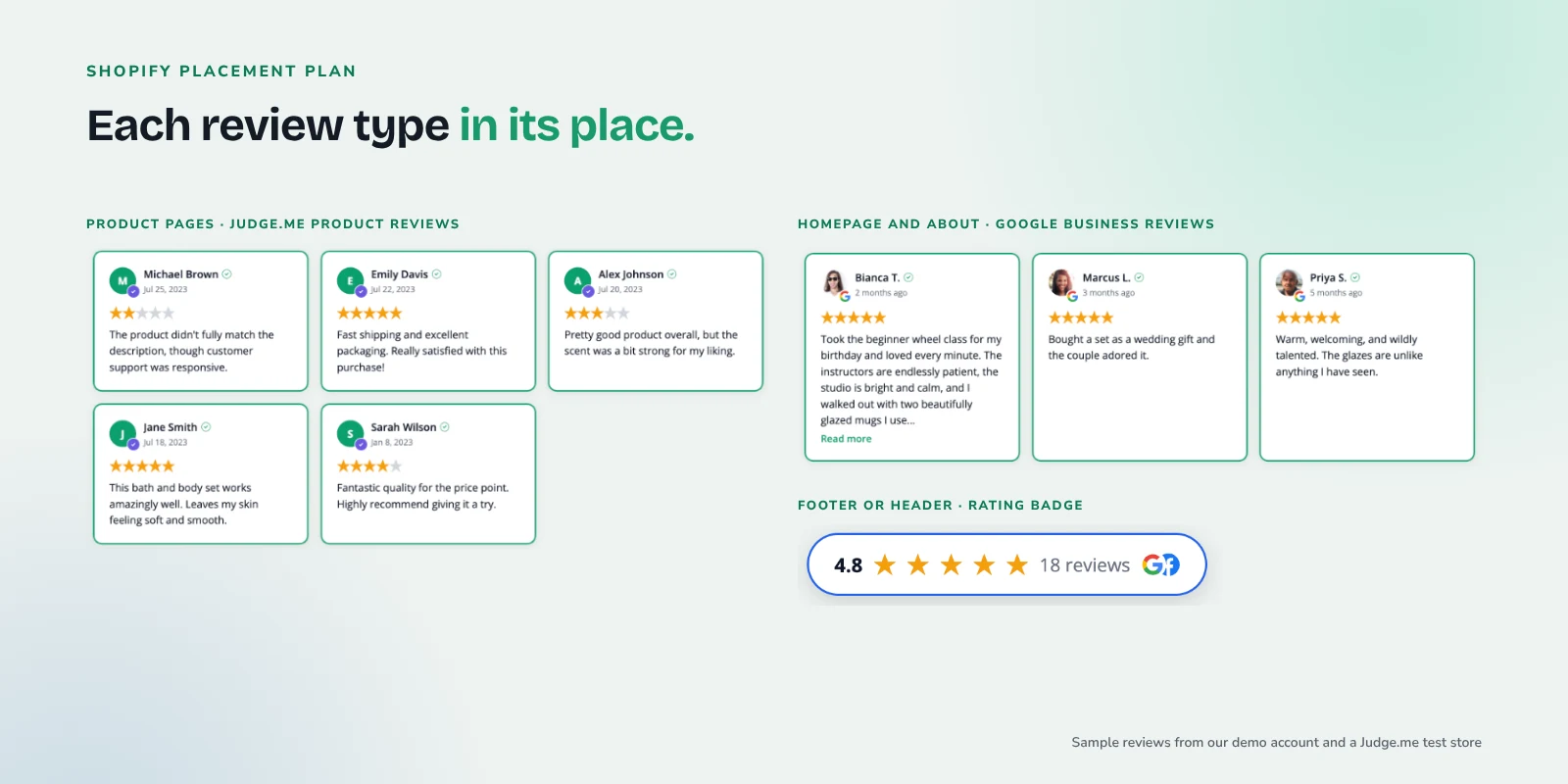
Product pages: keep Judge.me's widget
Keep Judge.me's own review widget on product pages. It shows reviews for that exact product and, as covered below, already handles product structured data. Do not replace it with a general business widget.
For a light store-level signal there, a small badge near the add-to-cart area works. A badge shows the overall rating and opens a popup of reviews when clicked, so it does not compete with the product reviews below.
Homepage: a store-level summary
The homepage is where business reviews earn their place. A grid or masonry layout of recent Google reviews, or a combined widget that mixes Google and Judge.me reviews with each one labeled by source, gives a new visitor a fast read on the store as a whole.
About and contact pages: proof that you are real
These pages are where people check whether you are a legitimate business. Google reviews fit naturally here, especially reviews that mention customer service or how a problem was handled.
Footer or header: a site-wide badge
A badge in the footer (or the header, if your theme has room) shows your rating on every page without taking much space. Because Shopify headers and footers are shared areas, anything you add there appears across the store.
For a deeper look at matching specific reviews to specific pages, see how to show the right reviews on the right pages.
How to add the BrandTrust snippet in Shopify
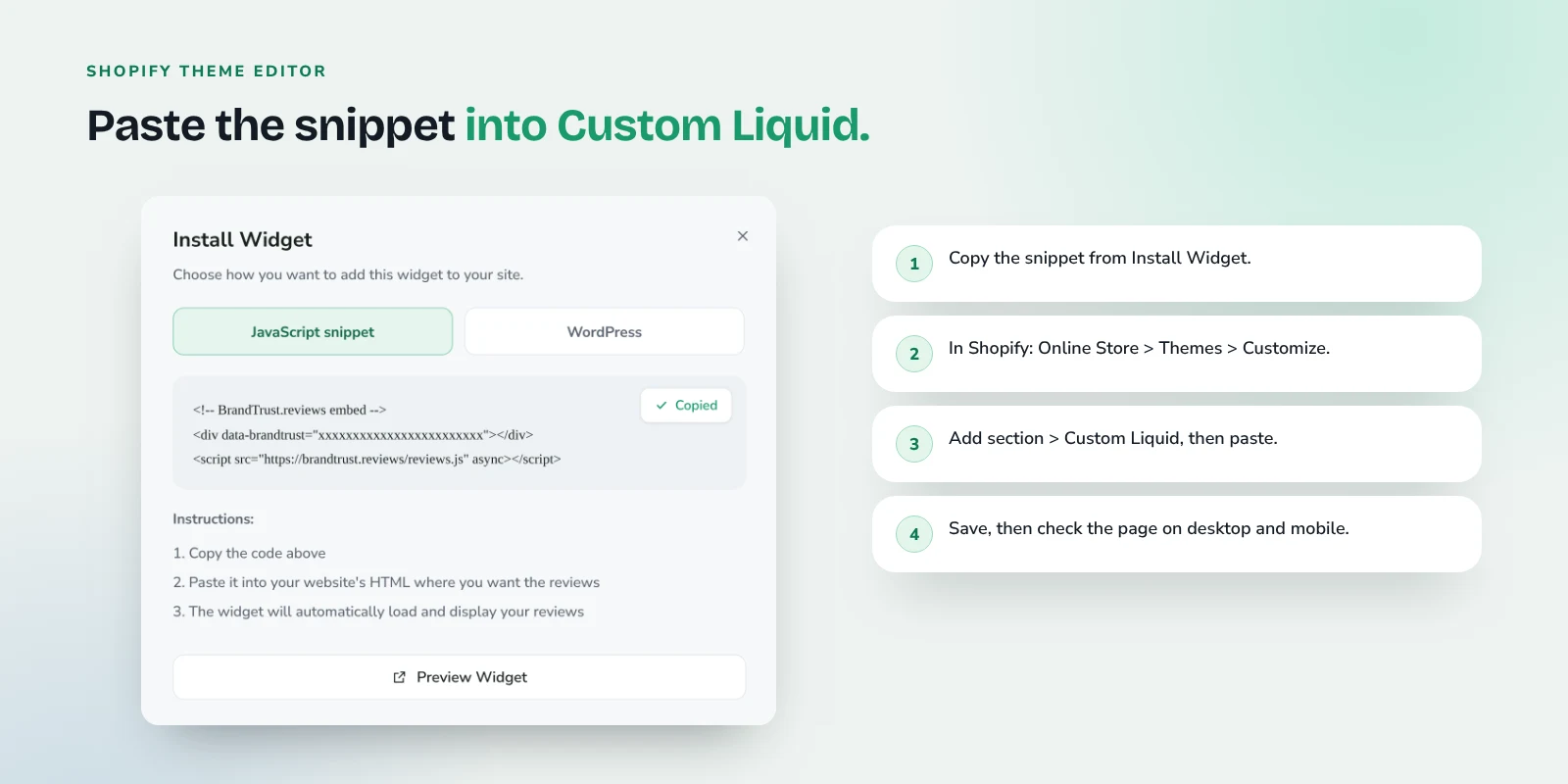
BrandTrust embeds with one snippet: a div and a script tag. On Shopify, the cleanest place to paste it is a Custom Liquid section or block in the theme editor, which is available in many Online Store 2.0 themes, including Shopify's own free themes.
Before you start
Shopify's help center recommends that you duplicate your theme before customizing it, so you have a copy to restore if something goes wrong. It takes a few seconds and is worth doing.
Step 1: Connect your sources and build the widget
In BrandTrust, connect the sources you want to show. For this setup that usually means Google plus Judge.me, and optionally Facebook or Etsy. Reviews are imported and kept in sync automatically (daily auto-sync on the free plan). Pick a layout (grid, list, carousel, masonry or badge), set your filters and order, then copy the embed code.
Step 2: Open the theme editor
In your Shopify admin, go to Online Store > Themes and click Customize (or Edit theme) on your live theme. Use the page selector at the top to choose the template you want, such as the home page.
Step 3: Add a Custom Liquid section
Shopify's guide to sections and blocks explains the basic flow: in the sidebar, click Add section, pick or search for the section you want, adjust its settings, then save. Search for "Custom Liquid" in that list. Shopify's section customization docs note that custom Liquid can live in the template area or in the shared header and footer areas.
To add it inside an existing section instead (for example, on a product page under the buy buttons), hover over the section, click Add block, and look for a Custom Liquid block.
Step 4: Paste the snippet and save
Paste the BrandTrust div and script tag into the Custom Liquid field, check the preview, then click Save. Drag the section up or down to place it where you want it.
If your theme does not have Custom Liquid
Some themes name it differently or leave it out. In that case, you can paste the snippet into a template through the code editor. Shopify's page on editing your theme with code advises editing theme code only if you are comfortable with HTML, CSS and basic Liquid, and suggests hiring a Shopify Partner otherwise.
More platform specifics live on the Shopify reviews widget page, and the Judge.me connection is covered on the Judge.me reviews widget page.
Combining Judge.me and Google in one widget
The free plan gives you one widget, often enough for a Google review badge on your homepage while Judge.me handles product pages.
Pulling Judge.me and Google reviews into a single widget is available on paid plans (Essentials and up). See current plans. Paid plans also add tags, custom CSS and widget cloning, handy when your about page needs a slightly different version of the homepage widget.
On the Growth plan, Smart Tags can automatically tag reviews by keyword, so a Google review that mentions a specific product line or a shipping experience can flow to the page where it is most relevant.
Label sources honestly
When product and business reviews share a widget, shoppers should be able to tell which is which. A five-star Judge.me review about a candle scent and a five-star Google review about fast shipping are both real, but they say different things. A few habits keep this clean:
- Keep source labels visible. In a BrandTrust combined widget, each review is labeled by its source, so a visitor can see where it came from.
- Do not inflate the headline rating. BrandTrust's headline rating and total count always reflect all imported reviews, not just the ones you feature. Featuring your favorite reviews is fine. Implying they are the whole picture is not.
- Do not hide the bad ones to fake a score. Filtering for relevance is normal. Hiding negative reviews to fake a better score tends to backfire.
For handling a bad one gracefully, see how to respond to negative reviews for examples.
What about Google review stars?
This is where expectations need to be set carefully.
Product pages
Google's product snippet structured data can include ratings and review information for a specific product. Judge.me says in its help article on displaying product ratings in Google search results that it automatically includes review snippet markup on product pages by default, as long as the product has at least one published review and the Judge.me widget is installed on that page.
So on product pages, Judge.me is likely already doing the structured data work. Avoid adding a second, competing rating markup there.
Even with valid markup, Google states plainly that it "does not guarantee that features that consume structured data will show up in search results." Valid markup makes a page eligible. It does not make stars appear. You can check your markup with Google's Rich Results Test.
Homepage and business reviews
Business reviews are a different story. Google's review snippet guidelines say that when a business controls the reviews about itself, its pages using LocalBusiness or Organization markup are not eligible for star review features. That includes Google reviews you display on your own site through a third-party widget. So a homepage widget of Google reviews will not earn you stars in search results.
That is fine. Business reviews on your store are there to reassure the person reading the page. BrandTrust's SEO review schema (AggregateRating, on paid plans) helps search engines understand the reviews on a page, as explained in our review schema post, but it is not a stars switch.
If you are still building up your Google review count, how to ask customers for reviews has templates you can adapt.
Frequently asked questions
Will BrandTrust replace my Judge.me widget?
No. Judge.me remains your product review app, and its widget is the right fit for product pages. BrandTrust imports your existing Judge.me reviews so you can show them elsewhere, such as on your homepage next to Google reviews.
Can I show Judge.me and Google reviews together on the free plan?
The free plan includes one widget. Combining sources in one widget is available on paid plans. See current plans.
Do I need to know code to add the widget to Shopify?
Not usually. If your theme has a Custom Liquid section or block, you paste the snippet into it in the theme editor and save. You only need the code editor if your theme does not offer Custom Liquid.
Will showing Google reviews on my store get me stars in Google search?
No. Google does not show review stars for a business's own reviews on its own site, including reviews displayed through a widget. Product review stars from Judge.me's markup are possible but never guaranteed.
Which other review sources can I add?
BrandTrust connects to Google, Facebook, Etsy, eBay, WooCommerce and Judge.me, with TripAdvisor in limited access and manual review entry for anything else. The FAQ has more detail.
Try it with your own reviews
If you want to try this on your own store, the BrandTrust free plan lets you connect a source and put a widget on your Shopify homepage today. No credit card, and no trial timer counting down.